Android phones come with decent speakers, but most people never unlock their real audio potential. Learning how to set up spatial audio on Android devices can transform cheap earbuds into something that rivals expensive sound systems. The technology exists in nearly every modern Android phone, it’s just buried under layers of confusing settings and manufacturer-specific menus.
What Spatial Audio Actually Accomplishes
The term “spatial audio” is often used by marketing departments to sell overpriced headphones. Understanding how to set up spatial audio on Android devices requires cutting through the hype to see what’s actually happening to your music.
Traditional stereo splits audio between two channels – left ear gets some sounds, right ear gets others. Spatial audio manipulation tricks your brain into perceiving sounds positioned in three-dimensional space around your head. Instruments appear to occupy specific locations in a virtual room rather than just blasting from two points.
Guitar riffs might seem positioned several feet to the left. Drum kits could feel like they’re sitting behind your head. Lead vocals hover directly in front, separate from the backing track. The brain interprets these processed signals as environmental audio rather than headphone output.
Done correctly, music stops feeling like it’s being injected directly into your ears and starts resembling live performance in an actual space.
Hardware Determines Audio Quality Limits
Spatial processing can’t fix fundamentally poor drivers or cheap construction. How to set up spatial audio on Android devices starts with understanding what your headphones can actually reproduce.
Gas station earbuds won’t benefit much from spatial processing – they lack the frequency response and driver quality needed. Mid-range options like the Sony WH-1000XM5 or Sennheiser Momentum 4 show dramatic improvements with proper spatial setup.
For Android users with Samsung phones, Samsung Galaxy Buds2 Pro integrate particularly well with the built-in spatial processing. The head tracking features work smoothly, and the audio tuning complements Samsung’s Dolby Atmos implementation.
Wired connections often produce better spatial results than Bluetooth. Wireless compression can interfere with the subtle audio cues that create spatial illusions. Anyone serious about audio quality should test both connection types with their specific headphones.
Manufacturer-Specific Settings Locations to Set up Spatial Audio on Android
Android manufacturers scatter spatial audio controls across different menu systems, making how to set up spatial audio on Android devices needlessly complicated.
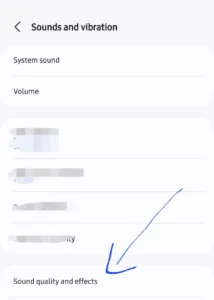
Samsung devices bury spatial settings multiple levels deep. Navigate to Settings → Sounds and vibration → Advanced sound settings → Sound quality and effects → Dolby Atmos. The “Movie” mode typically works best for music despite its name. “Auto” mode attempts to detect content type but often guesses wrong.
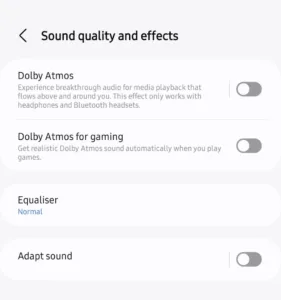 Google Pixel phones simplify the process. Settings → Sound & vibration → Spatial audio provides the main toggle. Pixel Buds owners get additional head tracking options that adjust audio positioning based on head movement.
OnePlus phones use different terminology entirely. Look for “Dirac Audio Tuner” or “Audio Tuner” in sound settings. Other manufacturers might label spatial features as “3D audio,” “surround sound,” or “enhanced audio processing.”
Phones lacking native spatial audio support can still benefit from third-party solutions.
Third-Party Apps for Enhanced Control
Built-in Android spatial processing offers basic functionality, but dedicated apps provide significantly more control over how to set up spatial audio on Android devices.
Poweramp costs money but delivers professional-grade spatial processing. The app works with any headphones and allows fine-tuning of room acoustics, speaker positioning, and crossfeed levels. The interface intimidates newcomers, but the audio improvements justify the learning curve.
Wavelet provides free system-wide spatial processing. Every app benefits from the enhanced audio without individual configuration. The dated interface hides sophisticated processing algorithms that compete with expensive hardware solutions.
Streaming services increasingly offer content optimized for spatial playback. Tidal specializes in high-quality spatial audio tracks, while Apple Music supports Android devices with extensive spatial audio libraries. Properly mixed spatial tracks sound dramatically different from standard stereo versions.
Optimal Configuration To set up Spatial Audio on Android
Many people sabotage how to set up spatial audio on Android devices by maximizing every available setting. Aggressive processing often sounds impressive initially but becomes fatiguing during extended listening sessions.
Conservative settings usually produce better long-term results. Crossfeed levels around 30% prevent excessive stereo separation without collapsing the soundstage. Room size should match the music – intimate acoustic recordings benefit from smaller virtual spaces, while orchestral pieces need larger room simulations.
Head tracking features sound impressive but drain battery power quickly. Enable head tracking only when headphones handle it smoothly without introducing audio artifacts or connection issues.
Test any spatial settings with familiar music. Songs that suddenly sound strange or artificial indicate overly aggressive processing. The best spatial audio enhancement feels natural rather than obviously processed.
Common Technical Issues and Solutions When Setting up Spatial Audio on Android
Battery consumption increases significantly with spatial audio processing enabled. Understanding how to set up spatial audio on Android devices includes managing the performance impact on phone battery life.
Phones running spatial processing work harder and generate more heat. Users experiencing rapid battery drain or warm devices should reduce processing intensity or limit spatial audio to charging periods.
Certain apps conflict with system-wide spatial processing. Spotify sometimes produces strange artifacts when spatial enhancement is active. Disable spatial processing for problematic apps or switch to alternative music players that handle the processing better.
Wireless headphones occasionally introduce audio delay when spatial processing is active. Video content may appear out of sync with the audio track. Switch to wired connections or disable spatial effects during video playback to eliminate synchronization issues.
Audio lag particularly affects gaming, where precise sound timing matters for competitive play. Gamers should test spatial settings thoroughly before using them in multiplayer environments.
Long-Term Strategy to Set Up Spatial Audio
Patience produces the best results when learning how to set up spatial audio on Android devices. Finding optimal settings requires time and experimentation with different content types and headphone combinations.
Start with minimal processing and gradually increase settings while listening to various music genres. Classical, jazz, and acoustic music typically showcase spatial effects well, while heavily compressed pop music may not benefit as much.
Document successful configurations for different scenarios – one setup for music, another for movies, possibly a third for gaming. Most spatial audio apps allow saving custom presets for quick switching between optimized settings.
Regular stereo audio starts sounding flat and confined once ears adjust to well-configured spatial processing. The investment in proper setup pays dividends across all audio content, transforming the Android device into a surprisingly capable audio platform.